Investing in financial products involves risk. Losses may exceed the value of your original investment.
Quick answer
CFD trading on MT4 supports forex CFDs, index CFDs, commodity CFDs (gold, oil), and select equity CFDs through any broker that licenses the platform with a CFD-enabled symbol set. MT4 hedging accounts allow long and short positions on the same instrument. On Volity, leverage runs up to 1:500 on forex, indices and gold, up to 1:50 on crypto and up to 1:20 on stocks.
MetaTrader 4, or MT4, is the most-used retail trading platform globally despite being released in 2005. Its dominance comes from three things: the breadth of broker support, a deep library of community-built expert advisors, and a workflow that experienced FX and CFD traders learned in their first year and never had reason to leave. For CFD trading specifically, MT4 covers FX, indices, commodities, and select equity CFDs through one terminal with minimal resource use.
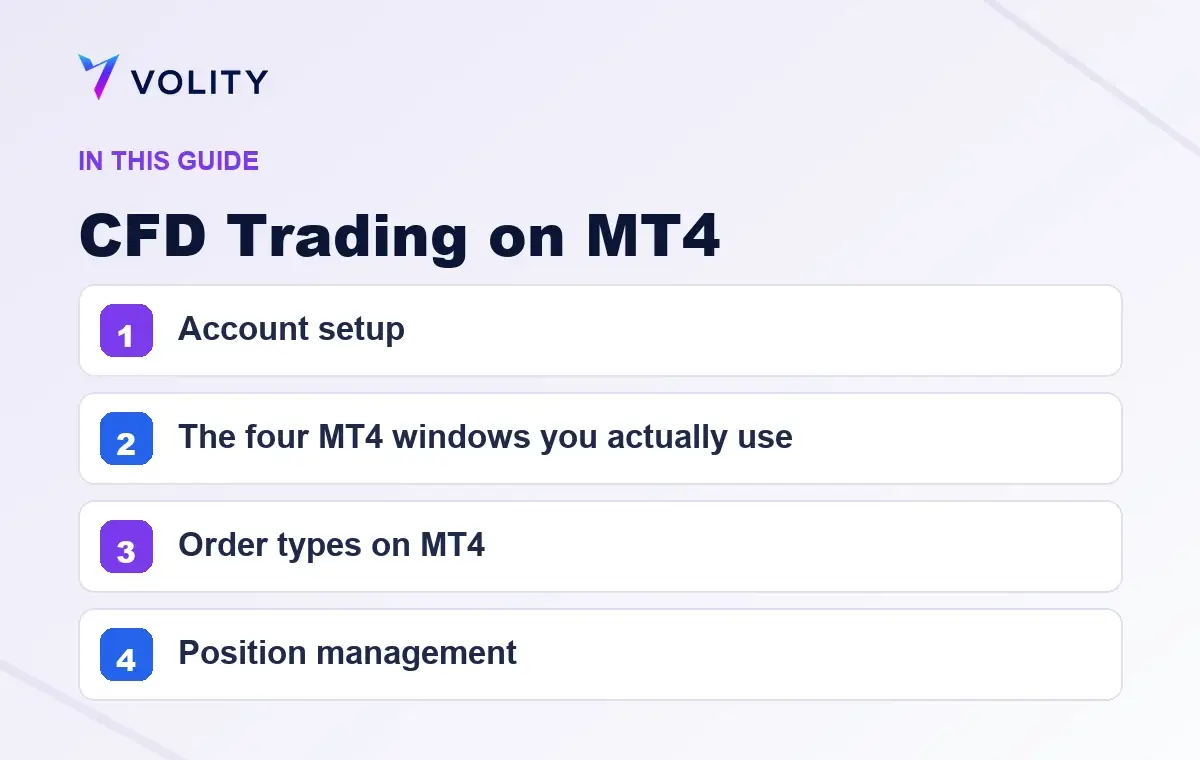
Account setup
Three steps from sign-up to first trade on Volity:
- Open and verify a Volity account. One KYC, one funded wallet. Trading is executed by UBK Markets Ltd (CySEC 186/12).
- Request MT4 credentials. Account number, password, and server name are issued from your Volity dashboard.
- Download the MT4 terminal. Available on Windows desktop, Mac via wrapper, web terminal, iOS, and Android. Log in with the credentials and server name.
The same wallet funds your trading account; deposits and withdrawals are managed in the Volity dashboard, not inside MT4.
The four MT4 windows you actually use
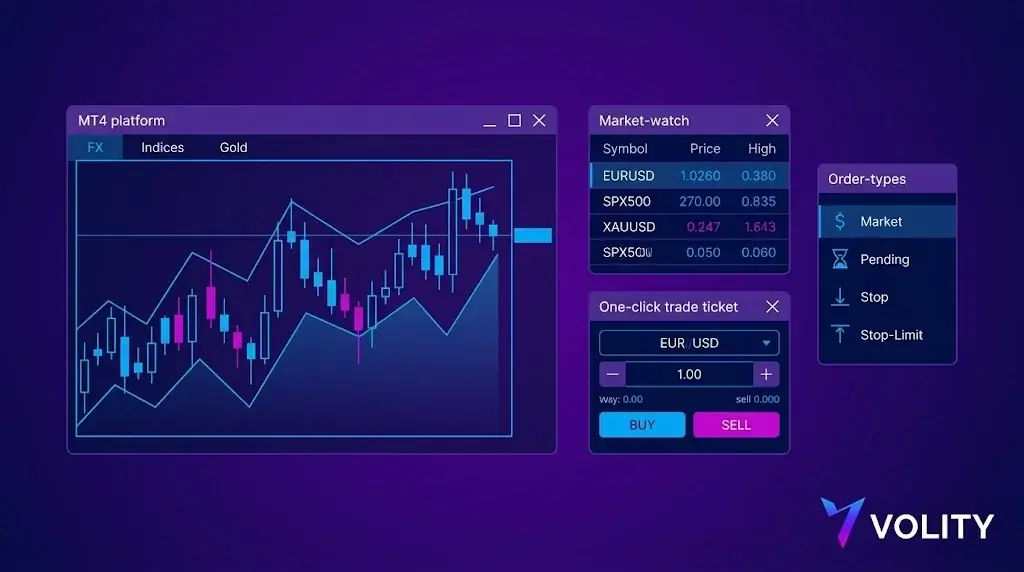
- Market Watch. The list of instruments available to trade. Right-click and Show All to populate every CFD symbol the broker offers. Drag a symbol to the chart area to open a chart.
- Chart. One-click trading toggle, timeframe selector (M1 through MN), and the indicator and template tools.
- Terminal. Bottom-of-screen panel showing open positions, pending orders, account history, alerts, and the journal. The Trade tab is your live book.
- Navigator. Left-side tree of accounts, indicators, expert advisors, and scripts. Drag-and-drop to apply.
Order types on MT4
Four order types, each with a specific use:
- Market order. Execute now at the best available price. Use for time-sensitive entries.
- Buy/sell limit. Buy below current price, sell above. Use for pullback or mean-reversion entries.
- Buy/sell stop. Buy above current price, sell below. Use for breakout entries.
- Stop-loss and take-profit. Attached to any open position. Always use both. The stop-loss is your contract with your future self.
Note: MT4 does not support stop-limit orders natively. If your strategy requires stop-limit (entry triggered by a stop price but executed only at a limit price or better), MT5 is the correct platform.
Position management
Three actions to know:
- Modify. Right-click an open position and select Modify or Delete Order to adjust the stop-loss, take-profit, or close size.
- Trailing stop. Right-click and select Trailing Stop, then choose a pip distance. The stop trails behind price as the trade moves in your favour. Note: the trailing stop is client-side; if the terminal closes, the trail stops updating, though the last-set stop remains active on the broker side.
- Partial close. Modify the volume on close to take partial profits while leaving a runner.
Expert advisors and automation
MT4 runs expert advisors (EAs) written in MQL4. The library is vast: twenty years of community-built strategies, indicators, and risk management tools.
Three workflow notes:
- One EA per chart. Run multiple EAs by attaching them to separate chart windows.
- AutoTrading toggle. The big AutoTrading button at the top of the terminal must be on for any EA to execute. A common mistake is leaving it off and wondering why an EA is not trading.
- VPS hosting. Serious EA users run MT4 on a virtual private server to keep the EA executing 24/5. Volity supports VPS-hosted MT4 connections without additional setup.
Hedging and netting
MT4 is a hedging platform. You can hold a long and a short on the same symbol simultaneously, each as a separate position. This is the default behaviour and is not toggleable. If your strategy requires a single net position per symbol (netting), MT5 is the correct platform.
What MT4 does not do
- Native depth of market. MT4 shows level-1 quotes only. DOM requires broker-specific plugins or MT5.
- Native economic calendar. External calendar required.
- Multi-threaded backtesting. The strategy tester runs single-threaded. MT5 backtesting is 5-10x faster on the same hardware.
- Stocks, futures, options. MT4 is FX and CFD. For multi-asset including listed equities and futures, MT5 or a separate platform.
Leverage and margin on MT4 at Volity
Leverage is set at the account level: up to 1:500 on majors, minors, major indices, gold and other commodities, up to 1:50 on crypto CFDs and up to 1:20 on individual equity CFDs. Leverage magnifies gains and losses alike, so size each position so a single loss stays small and keep a stop-loss. MT4 displays the resulting margin requirement live in the trade ticket.
Negative balance protection applies. You cannot lose more than the equity in your account.
CFD trading on MT4 at Volity
Volity offers MT4 alongside MT5 and the Volity web platform. CFDs available on 70+ FX pairs, 20+ indices, gold and silver, oil, and 200+ equity references. Execution is by UBK Markets Ltd, a Cyprus Investment Firm authorised by CySEC under licence 186/12. Eligible retail clients of UBK Markets are covered by the Cyprus Investor Compensation Fund up to EUR 20,000 per client per firm.
Volity operates a trading platform and also publishes educational and analytical content about trading. The content on this page is for educational purposes only and should not be considered financial advice. Volity may benefit commercially when readers open trading accounts through links on this site.
Our content is produced and reviewed under documented editorial standards; see our comparison and review methodology.