Investing in financial products involves risk. Losses may exceed the value of your original investment.
Quick answer
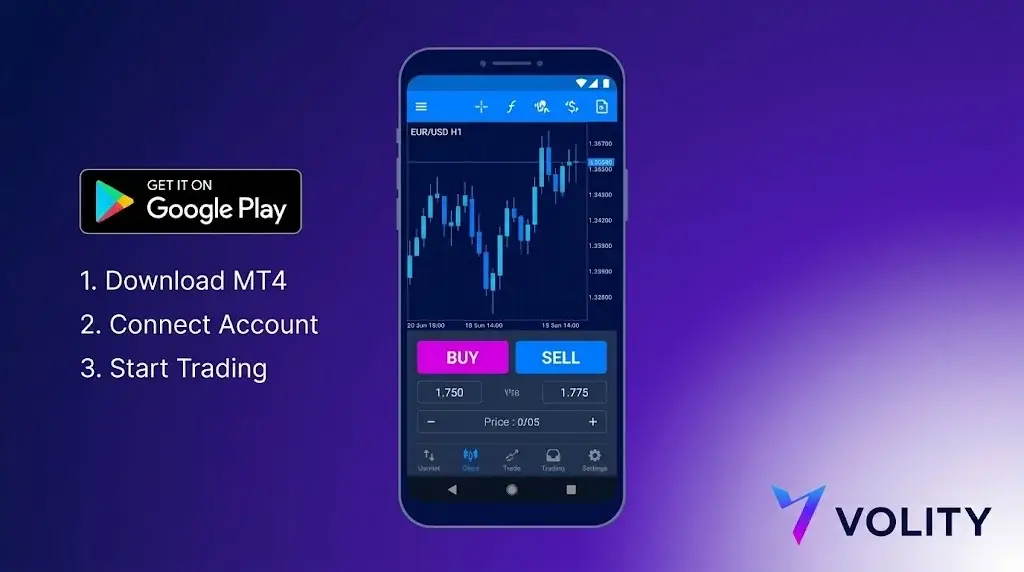
MetaTrader 4 on Android is a free official app from MetaQuotes available in the Play Store. After installing, log in with your broker server, account number, and password. The mobile app supports market and pending orders, basic charting, indicators, and account management. Custom indicators and Expert Advisors require the desktop client; mobile has read-only access to them.
MetaTrader 4 on Android is the official mobile build from MetaQuotes Software Corp. It is free on Google Play, runs on Android 5.0 and above, and supports the same broker accounts as the desktop terminal. The Android app shares roughly 95% of its functionality with the iOS build; the differences are minor UI variations and Android’s more flexible widget and notification model. Here is the step-by-step setup and the practical limitations.
Step 1: install the app
Open Google Play and search “MetaTrader 4”. The official publisher is MetaQuotes Software Corp. Do not install third-party clones; only the MetaQuotes build connects to live broker servers reliably and gets security updates. The download is roughly 50 MB. The app supports both phones and Android tablets, with layout adapting to screen size.
Step 2: connect to your broker
Three pieces of information from your broker:
- Server name (e.g. “BrokerName-Live” or “BrokerName-Demo”)
- Login number (numeric, assigned at account opening)
- Password
In the app: hamburger menu, Manage accounts, plus icon, Login to existing account. Search the broker name; the app pulls the server list from the MetaQuotes directory. Pick the server matching your account type. Live and demo are differentiated by server, not credentials.
Step 3: configure the chart
Default timeframe is M1. Tap the timeframe label in the top bar to switch (M1, M5, M15, M30, H1, H4, D1, W1, MN). Tap the indicator icon (f) to add: moving averages, Bollinger Bands, MACD, RSI, Stochastic, Ichimoku, Parabolic SAR, and others are native. Custom indicators developed in MQL4 do not run on Android. This is the first major limitation.
To add a drawing tool, long-press on the chart and select from the menu: trendlines, horizontal lines, Fibonacci, channels, text labels.
Step 4: place an order
Tap the “+” icon top-right or the symbol on the chart. Order types available on Android MT4:
- Market execution
- Buy limit, sell limit
- Buy stop, sell stop
Set volume in lots (default 0.01 micro to several hundred standard, broker-dependent). Attach stop-loss and take-profit at order entry, or modify afterwards by tapping the position in the Trade tab. One-click trading is in Settings, off by default.
Step 5: monitor and manage
The Trade tab shows open positions and pending orders. Tap a position to modify, partially close, or fully close. The History tab shows closed trades with full P&L and execution details. Long-press a position for quick close-at-market.
Step 6: set price alerts
The Quotes tab, long-press a symbol, Alerts. Set the trigger condition (price above, below, change in percent), the notification channel (push notification, email if configured on broker side), and the expiry. Alerts persist server-side; the app does not need to be open for the notification to fire.
Android-specific advantages
Two areas where Android beats iOS for MT4 users:
- Background execution. Android allows the MT4 app to maintain a persistent connection to the trade server with less aggressive throttling than iOS. Push notifications and alerts arrive a touch faster.
- Widget support. The MT4 widget can display a watch list on the home screen for at-a-glance price monitoring without opening the app.
Android-specific limitations
Same three as iOS, plus battery management:
- No expert advisor execution. EAs run only on desktop or VPS. Android cannot host or execute MQL4 code.
- No custom indicators. Built-in library only.
- No strategy tester. Backtesting is desktop-only.
- Battery optimisation. Aggressive Android battery savers (Samsung One UI, Xiaomi MIUI) sometimes kill the MT4 background service. Whitelist MT4 in your battery settings to keep alerts firing.
Workaround: running EAs while trading from Android
VPS. MetaQuotes’ built-in MT4 VPS is configured from the desktop terminal under Tools, Virtual Hosting, runs $10-20 per month, and operates 24/5 independent of your devices. Your EA runs on the VPS; you execute discretionary trades from Android on the same account. Both terminals see the same trade history.
Workaround: running EAs while trading from Android
Run the indicator on a desktop or VPS terminal and use MT4 price alerts to push a signal to the Android app via push notification. Combined with the alerts feature on Android, this approximates a custom-indicator workflow without needing the indicator to run on the phone.
Connection management
- Wi-Fi to cellular handover during a live trade can drop the order before confirmation. Watch for the confirmation after every order placed on cellular.
- Battery drain in an active session is roughly 6-12% per hour, depending on chart count and update rate.
- If push notifications stop arriving, the most common cause is Android battery optimisation. Settings, Apps, MetaTrader 4, Battery, set to Unrestricted.
Security checklist before you fund
- Enable fingerprint or face unlock for app access (Settings, Security).
- Enable two-factor authentication on the broker’s client area.
- Verify the server matches your broker’s published server list.
- Test a small withdrawal before funding meaningfully. Withdrawals are processed in the broker client area, not the MT4 app.
MT4 on Android at Volity
Volity supports MetaTrader 4 on Android for clients of UBK Markets Ltd (CySEC 186/12). Setup follows the standard MetaQuotes flow above; the server name appears in your client area after KYC. Push notifications, persistent alerts, and all standard MT4 order types are available. ESMA retail leverage caps apply (1:30 majors, 1:20 minors and major indices, 1:10 commodities, 1:5 equities, 1:2 crypto). Negative balance protection is contractual.
Volity operates a trading platform and also publishes educational and analytical content about trading. The content on this page is for educational purposes only and should not be considered financial advice. Volity may benefit commercially when readers open trading accounts through links on this site.
Our content is produced and reviewed under documented editorial standards; see our comparison and review methodology.
Frequently asked questions
Can I trade fully from MT4 on Android?
Yes, for manual trading. You can open, modify and close positions, set stops and targets, and read charts. What you cannot do is run Expert Advisors or install custom indicators, both of which require the desktop terminal.
Why do my desktop indicators not appear on Android?
Custom indicators are compiled files stored in the desktop data folder and are not synced to mobile. Only the platform's built-in indicators are available on the Android app.
Is mobile trading riskier than desktop?
The execution is the same, but the context is not. Small screens make it easy to mis-set a stop or a lot size, and trading from a phone tends to encourage impulsive entries. Set your risk parameters before you open the app.